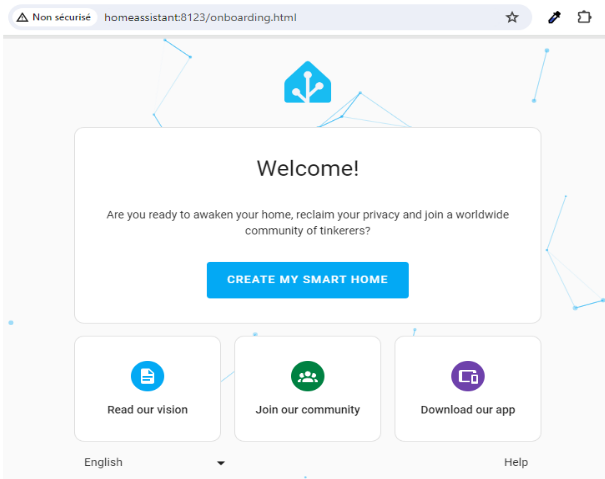
2.3 Home Assistant

Install Home Assistant Supervised on a Smart Pi One
This guide will go over how to install Home Assistant (Supervised) on Debian based Linux Distributions. Remember only the latest version of Debian is supported.
SD card with the image below
Prebuilt image link for 32GB or more : https://drive.google.com/file/d/1OFF1DpqMVtUqXKGGxFsO4lJdDIy_v8eS/view?usp=drive_link
The default logins are :
Access your account by using the default username “root” and "pi", the default password “pi”.
Prerequisites
-
Micro SD Card: a 32 GB or bigger card is recommended
-
Installing a smartpi, YUMI SMART PI 1 BOOKWORM SERVER is recommanded
-
During linux server installation please create user: pi
Connect to the smartpi via ssh with mobaxterm or putty, for example.
Update the smartpi
Firmware Update and restart
Use the armbian-config utility to update the firmware:
In the interactive menu, select "System"
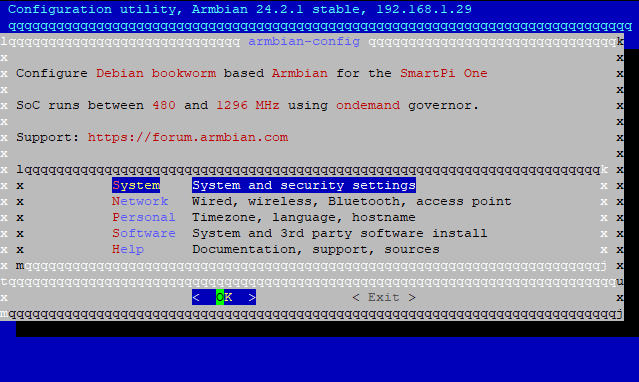
Select "Firmware" and "< Yes >"

And select "< Yes >" for reboot

Install Home Assistant Supervised
Installed logged in as root.
Update the OS name
Only Debian is supported by HA supervised, so we need to fake the OS name, otherwise install will fail on check:
In /etc/os-release update ARMBIAN_PRETTY_NAME by:
Give a host name if you like
Configure AppArmor and cgroupv1
I am not going to explain what and why, this has beed discussed here before (see links below).
apt install apparmor
sudo echo "extraargs=apparmor=1 security=apparmor systemd.unified_cgroup_hierarchy=false systemd.legacy_systemd_cgroup_controller=false" >> /boot/armbianEnv.txt
update-initramfs -u
reboot
Home Assistant installation for YUMI Smart Pi One
git clone https://github.com/adnroboticsfr/smartpi_homeassistant.git
cd smartpi_homeassistant
chmod +x install.sh
./install.sh
Chose qemuarm
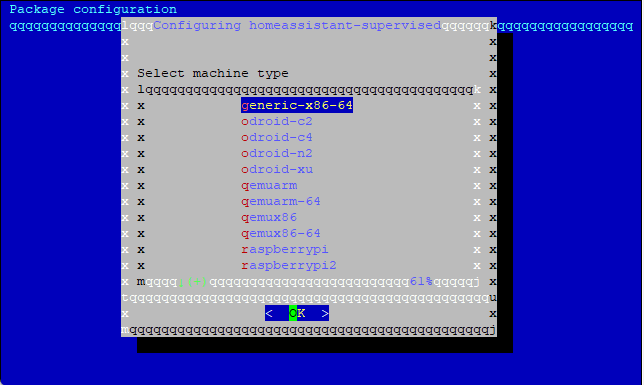
Wait check installation of Home Assistant and reboot.

A short while after the installation begins, the Home Assistant web interface will be available at http://homeassistant:8123 or http://IP:8123, where IP is the IP address of your device. I get the “Preparing Home Assistant” screen.
Wait until the installation is complete.
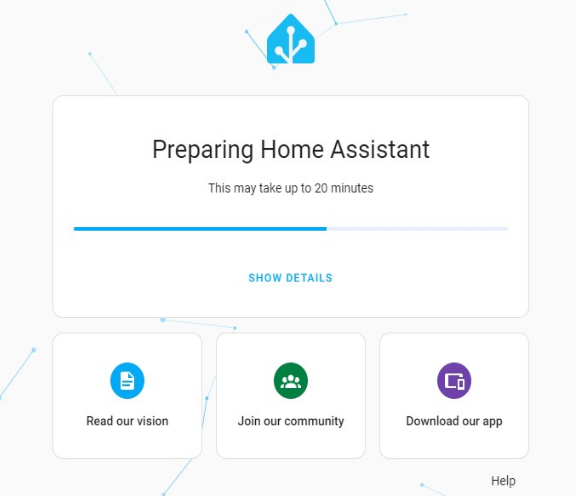
Once its preparation is complete, it will ask you for some settings.